Downloading Files
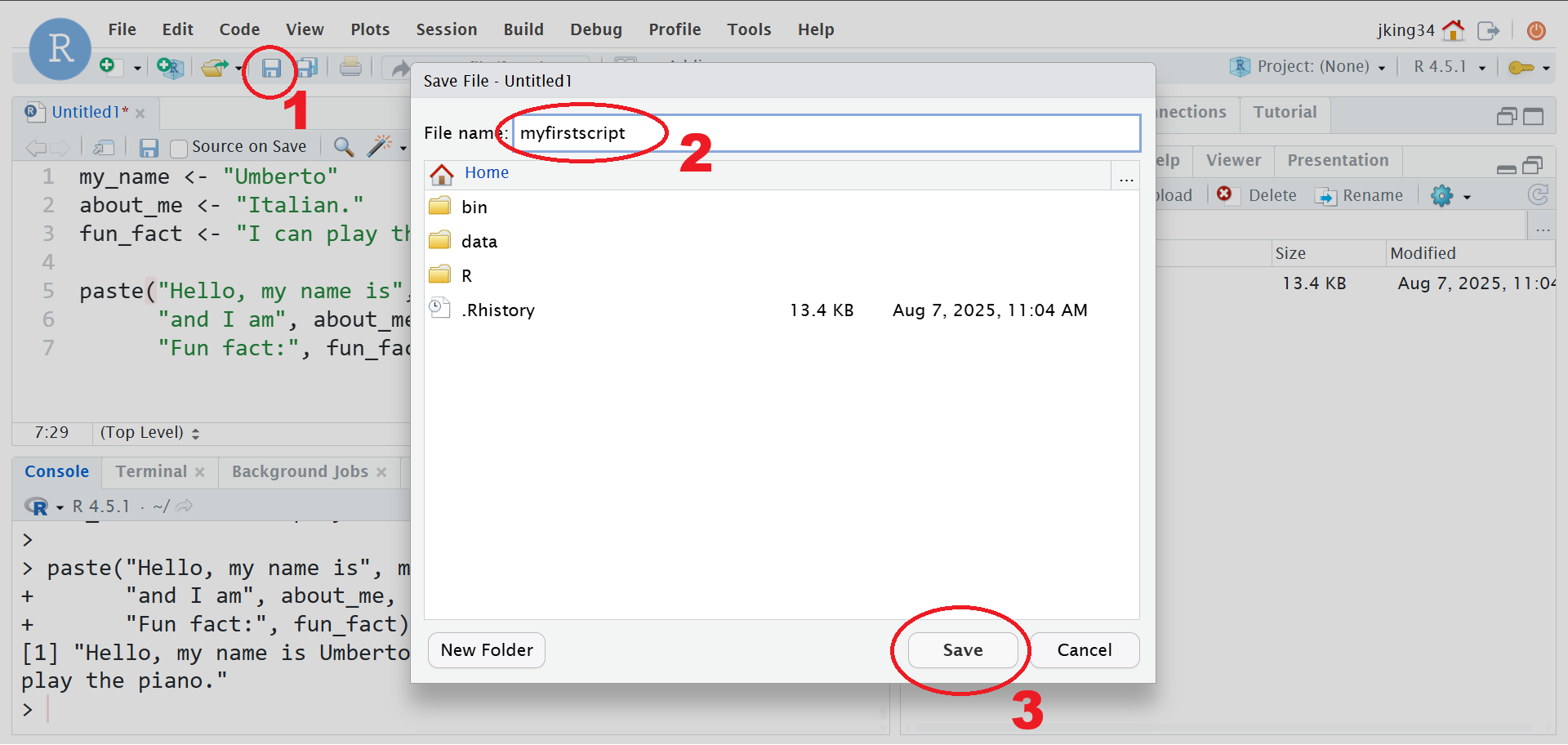
1. Save the file.
- Click on the little save icon, or go to File > Save/Save as.
- In the box that opens, give your file a name, and click save.
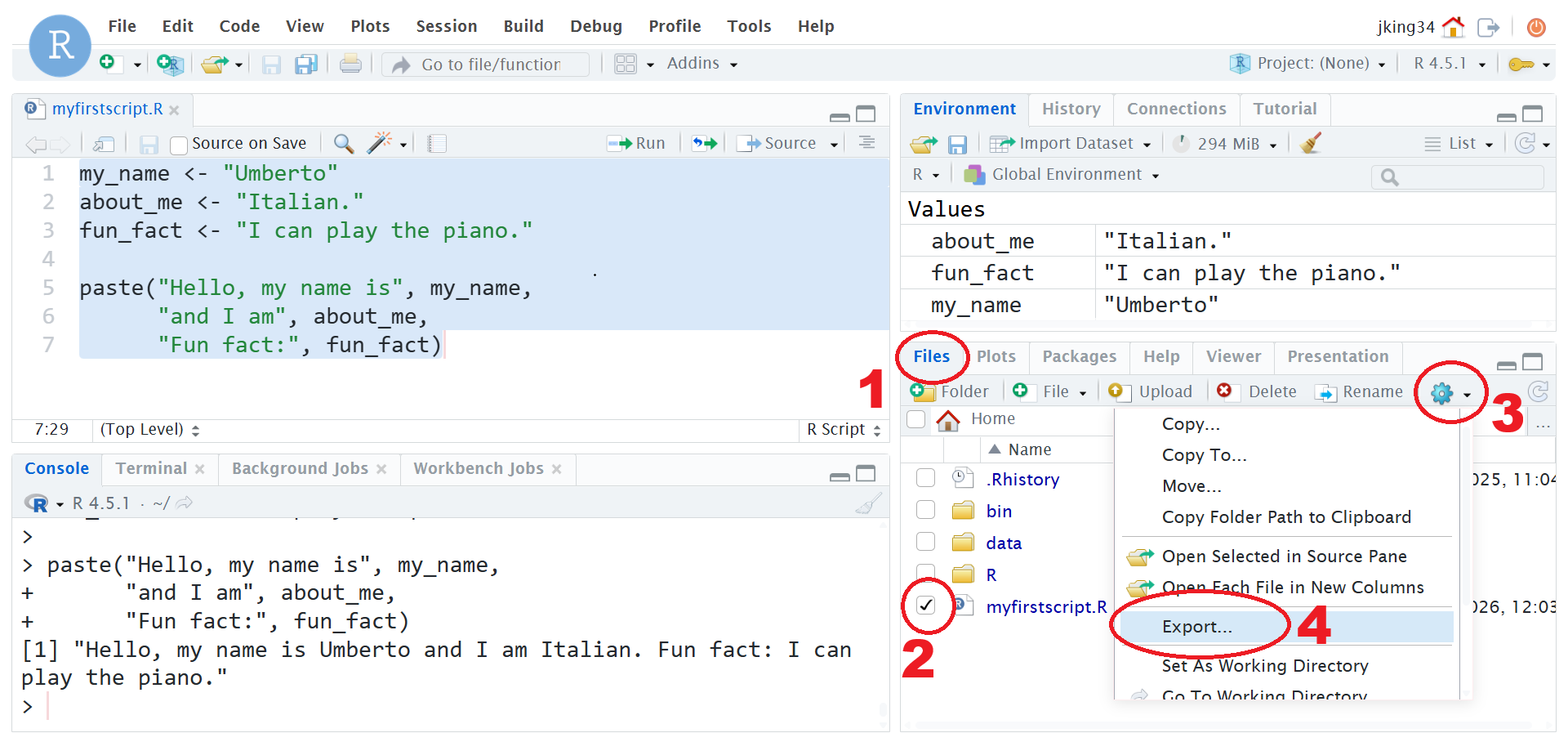
2. If you’re working on the RStudio Server, then download the file to your computer.
- In the bottom right pane of RStudio, click on the “Files” tab.
- Find the file that you saved in step 1, and check the box next to it.
- Click “More” > “Export”.
- In the box that opens, save the exported file to a location on your computer.
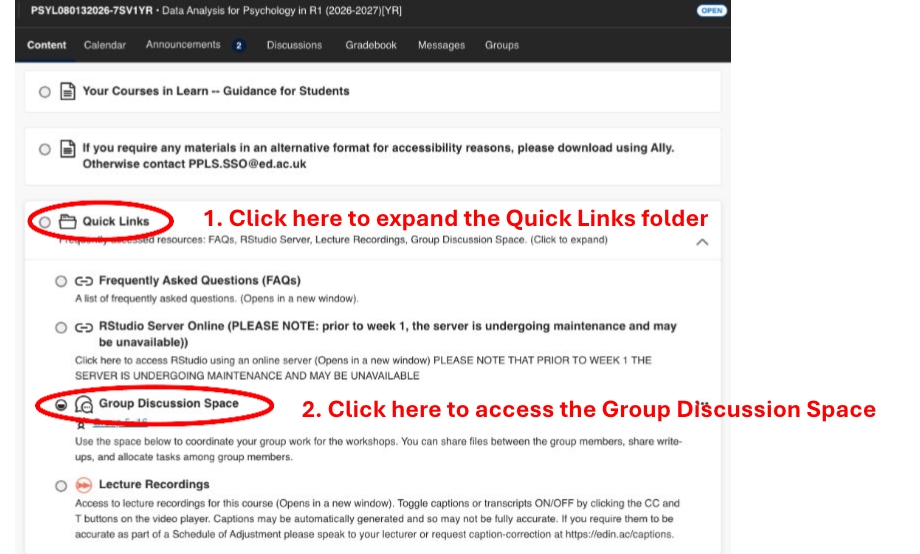
3. Go to Learn and find the Group Discussion Space
- Go to the course Learn page
- Click to expand the “Quick Links” folder
- Click on “Group Discussion Space”
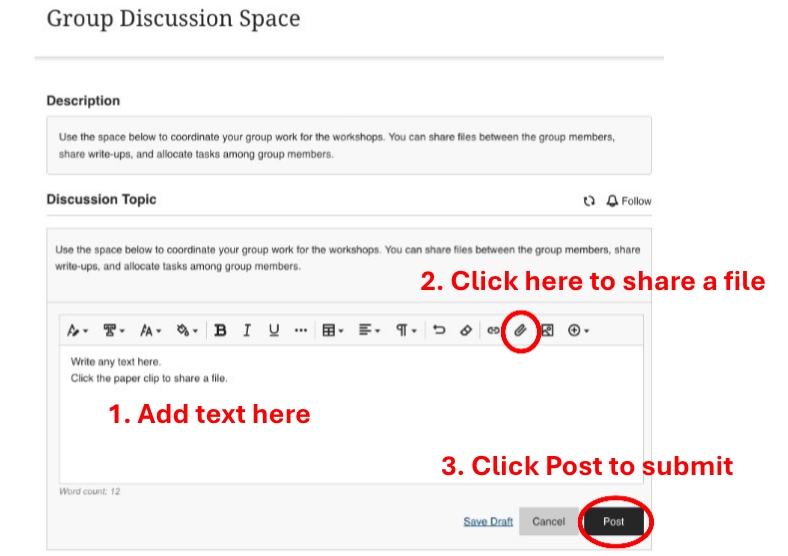
4. Post the file!
- Start a new post
- Click attachment
- In the box that opens, find the file that you saved on your computer in the previous step.
- Click post!
Uploading Files
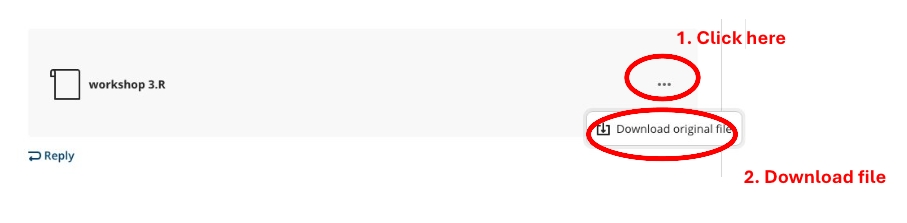
1. Download the R script from the Group Discussion Space
- Go to the Group Discussion Space
- Click the …
- Download the file
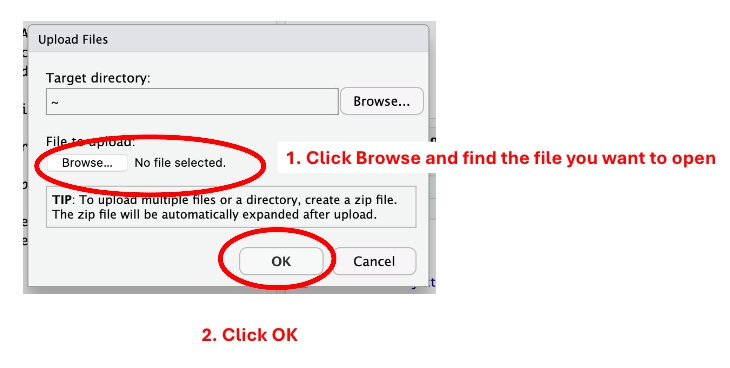
3. Find the file on your PC
- Click the middle Browse button and find the file to upload
- Click OK
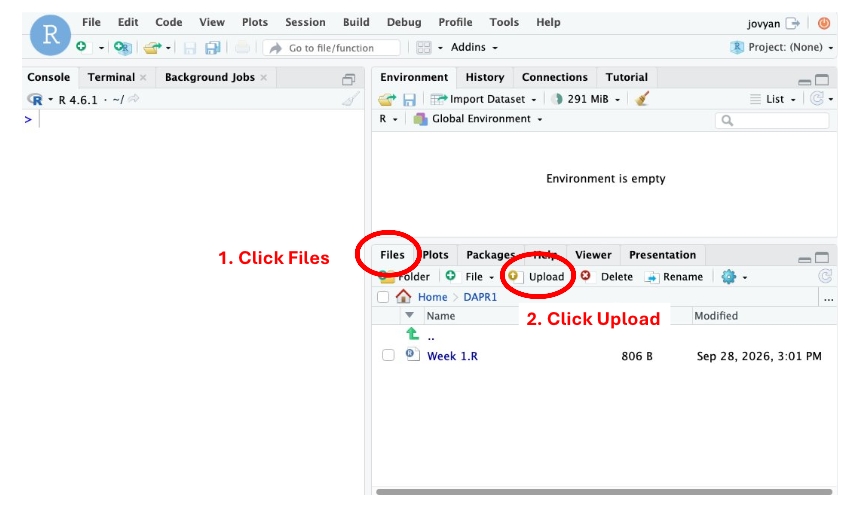
4. Click Upload
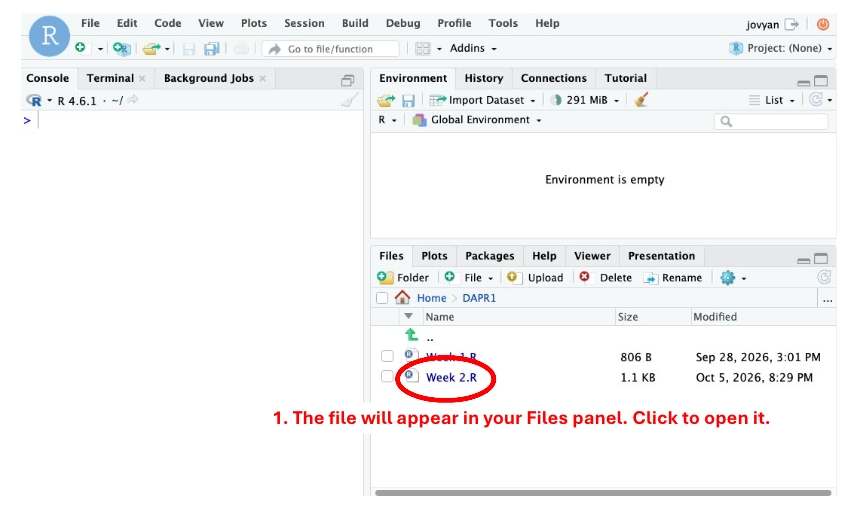
- Go back to your Files panel
- Click the file name to open it